


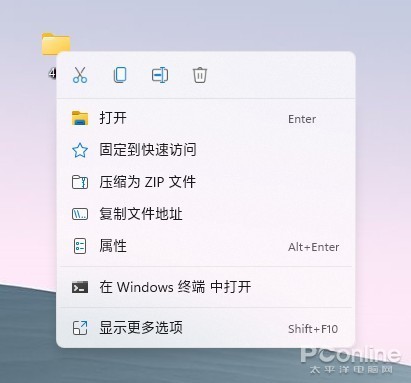

Microsoft released the official version of Windows 11 on October 5, and many friends also upgraded it. However, not everyone can adapt to some new design of Windows 11. For example, the new shortcut menu that appears on right-click is not acceptable to many friends. Compared to the previous style, the appearance of the new right-click menu in Windows 11 has been greatly improved. It not only uses the Fluent Design language, but also improves the layout of the text, the line spacing is wider, which is easy to read and touch.

However, the right-click menu in Windows 11. It hides many options. If you want to find some commonly used functions, you need to click “Show more options” to expand, which is very annoying. How do you do? Today I am going to share with you some ways to get back the full right-click menu of Windows 11!

Use the registry to edit
First of all, by modifying the registry, we can change the Windows 11 right-click menu to the old style. Next is the selected method.
Run “regedit”, open the registry editor, locate “HKEY_CURRENT_USERSOFTWARECLASSESCLSID”;
Next, right-click on the key value “CLSID” and create a new item with the name {86ca1aa0-34aa-4e8b-a509-50c905bae2a2};
Right-click on the newly created element, create a new one with the name InprocServer32, and press Enter to save;
Finally select the newly created item, then double click the default item in the left pane. No entry is required, press the Enter key.
After saving the history, restart explorer.exe, you can see that the right-click menu has been restored to the old style.
If you want to go back to the design of Windows 11, delete the InprocServer32 item.
Use the program to edit
Playing the registry is more complicated, and it is easier for inexperienced friends to make mistakes, so we can also use some software to modify it. For example, this is the Classic Windows 11 context menu.
Classic Windows 11 context menu: https://www.sordum.org/14479/windows-11-classic-context-menu-v1-0/
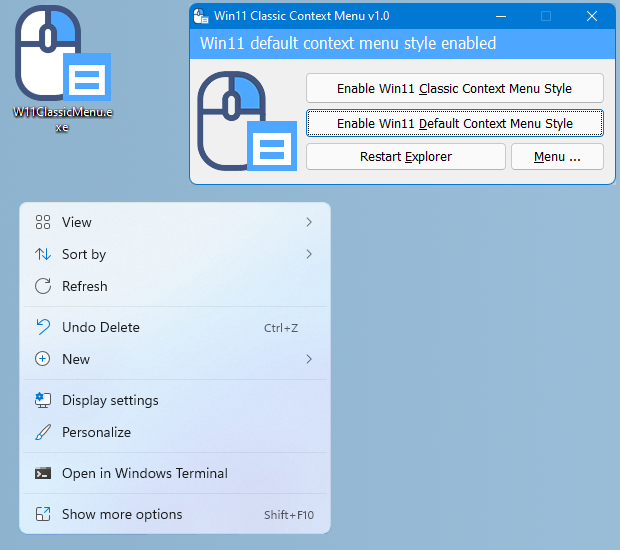
The principle of the classic Windows 11 context menu is the same as the way to modify the registry above, except that it summarizes these steps in a small green program. You can modify the registry with one click to achieve the same effect.

After downloading the classic Windows 11 context menu, open it and you can see three options, corresponding to “Classic Right-Click Menu”, “Default Right-Click Menu” and “Restart Explorer.exe”. Simply tap to switch menu style, then tap to restart Explorer, you can freely switch between classic menu style and Windows 11 default menu style.
sum up
In general, some designs of Windows 11 have already caused controversy. In addition to the right-click menu, many friends of the start menu and taskbar also expressed the difficulty of adapting. But there is always a way to solve these problems, and we will introduce more related methods later to give users more options to switch to the original classic design.
